
How to Use a Travel Budget Spreadsheet: Step-by-Step
This post contains affiliate links. As an Amazon Associate, we earn from qualifying purchases.
To use a travel budget spreadsheet, set a total budget at the top, enter each cost as a quantity times a unit cost, and reconcile the estimate against the actual as you go. The estimate column drives the booking decision, the actual column tells you the truth, and the gap between them is the number worth checking daily.
That quantity-times-unit-cost instruction is the part of how to use a travel budget spreadsheet that gets skipped, and it’s why estimates collapse the moment the trip length changes. Enter four nights at a nightly rate and the lodging line recalculates itself when you add a fifth. Enter one flat guess and you rebuild the whole sheet by hand.
What follows: the two columns that do the work, the buffer line you should lock, and the sign-convention fight that makes two people read the same sheet and reach opposite conclusions.
Key Takeaways
- Set the total budget first, in the top section of the sheet.
- Enter lodging as nights times cost per night and driving as miles times cost per mile. A flat guess can’t recalculate when the trip grows.
- Label your Difference column with its polarity. Bricks and FinancialAha read a positive number as under budget; Millikin’s example reads it as an overage.
- Lock the buffer cell. TravelistCorner starts at 10%, and Vertex42 specifies none.
- Share the sheet with Editor access, so travel partners can add flight details, suggest restaurants, or check items off the packing list.
Vertex42’s Quantity Times Unit Cost Model Still Wins for Driving Trips
Vertex42 builds its Travel Budget Worksheet around one instruction: enter a quantity and a unit cost for every line. It’s a clean example of how to use a travel budget spreadsheet for a trip where one cost dominates.
A quantity-times-unit-cost budget stores two numbers per line instead of one. Lodging becomes nights multiplied by cost per night. Driving becomes total miles multiplied by cost per mile. When the trip length changes, the estimate recalculates without re-entry, and the total budget set at the top of the sheet still governs the result.
That structure earns its keep on driving trips, because driving is the one line where the cost is genuinely a rate rather than a purchase. Vertex42 tells you to include both fuel and wear, and points at the IRS standard mileage rate as the figure to use.
I’ve priced a driving trip on fuel alone and talked myself into a road trip that cost more than the flight I was avoiding. Wear is the half that hides.
Where a Stale Mileage Rate Bites
A hard-coded rate rots in place. Vertex42’s page cites a mileage figure from 2014. The number inside it is eight years old.
That’s the failure mode nobody warns you about. Any rate you paste into a cell — mileage, exchange, a per-diem — keeps working long after it stops being true. The sheet doesn’t complain. The total just drifts, and you find out at the rental counter.
Where this goes sideways: Copying a template’s column list without reading past it. The Bricks guide publishes a column list with “Actual Cost (Home Currency)” in Column F, then later tells you to reassign Column F to “Estimated (Home Currency)”. Follow the first list literally and you build the wrong sheet.
Thirteen Categories or Eight? Match the Sheet to the Trip
FinancialAha’s template carries thirteen trip cost categories. TravelistCorner’s carries eight. Neither number is wrong, and the difference tells you which sheet you actually need.
TravelistCorner’s set is the one I’d hand a first-time user, because every category maps to a thing you pay for:
- Getting there: flights, trains, gas, tolls, airport transfers, checked bags
- Lodging: nightly rate plus taxes, resort fees, parking, cleaning fees
- Local transport: subway, buses, rideshares, parking at attractions
- Food and drinks: meals, snacks, coffee, groceries, tips
- Travel insurance, shopping and souvenirs, and a catch-all for fees and other
The FinancialAha set runs wider, and it carries the insurance and miscellaneous lines that a mental estimate leaves out. That width is the whole argument for it on a group trip or anything with an institutional payer.
| Trip shape | Categories to keep | What gets forgotten |
|---|---|---|
| City break, two people, four nights | All eight in the TravelistCorner set | Local transport and the airport train |
| Solo trip, one base, one week | Five or six; leave the rest at zero | Laundry and ATM fees |
| Group or institutional trip | All thirteen in the FinancialAha set | Insurance and the miscellaneous line |
| Road trip | Getting there becomes a rate line | Wear, not just fuel |
Two lines get skipped on a first draft and then show up in the actual column anyway. A solo travel budget needs a laundry line and an ATM fee line, because both hit you repeatedly and neither hides inside a hotel rate. And once you have a real number for daily travel costs, the food and local transport rows stop being guesses.
Tab count is the other split. Bricks recommends four tabs: itinerary, budget, bookings, and packing list. FinancialAha ships two, one working sheet plus a How to Use guide. If you’re building a full travel itinerary anyway, the four-tab version keeps the budget sitting next to the thing it’s paying for.
The Five Steps That Get the Sheet Working
Five things happen in this order, and the order matters more than the tool you pick.
Before you start: Three things quietly wreck a trip budget. Booking anything non-refundable before the estimate column balances locks in a number you haven’t checked. A hard-coded rate rots in place, which is how a 2014 mileage figure is still sitting on a page. And a buffer you can edit will be edited, usually on day two, when the sheet looks tight. Hold the bookings, date the rate, and lock the buffer cell.
- Set the total budget in the top section first. Skip it and every line below becomes a number with no verdict attached, so you can’t tell whether a cost is affordable or fatal.
- Enter each cost as quantity times unit cost. A flat guess can’t recalculate, so adding a night means rebuilding the lodging row by hand at 11pm.
- Add a buffer line and lock it. Leave it editable and it disappears the first time the sheet looks tight, which is exactly when you need it.
- Write the polarity into the Difference header. “Difference” alone tells the next reader nothing, and they’ll guess wrong about half the time.
- Share the sheet with Editor access. Viewer access means your travel partner texts you receipts instead of logging them, and the log falls a day behind by the second city.
If you want the simplest starting point, the FinancialAha Free Travel Budget Spreadsheet Template is a plain .xlsx with no macros and no VBA, so it opens in Excel on Windows, Excel on Mac, and Excel for the web without a security warning. To run it in Google Sheets, upload it to Drive, right-click, and choose “Open with Google Sheets”. Nothing gets rewritten on the way in.
Why Does Your Difference Column Show a Positive Number When You Overspent?
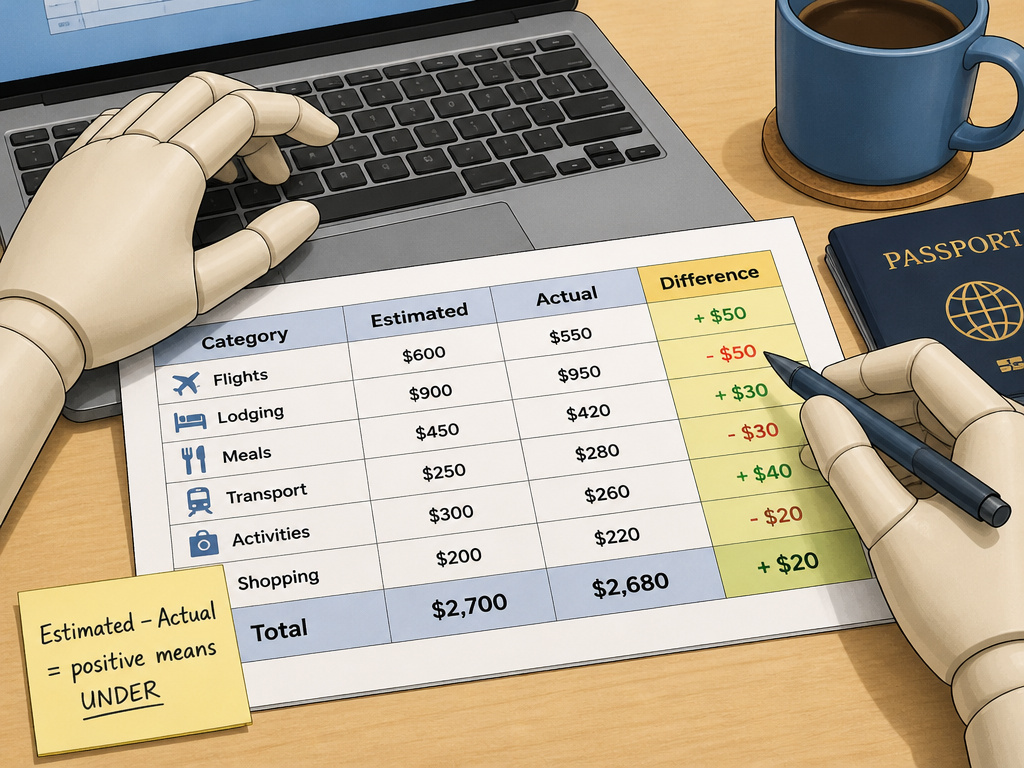
Because “Difference” is a column name. It carries no polarity on its own, and the three sources in this space define it three different ways.
| Source | Difference formula | Positive number means |
|---|---|---|
| Bricks | Estimated minus Actual | Under budget |
| FinancialAha | Budgeted minus Actual | Under budget |
| Millikin example | Labelled Over/(Under) | Over budget |
Bricks defines the column as =F2-G2 and states plainly that a positive number means you were under budget. FinancialAha uses the same convention and says the same thing: budgeted less actual, so a positive means the line came in under.
Millikin’s worksheet goes the other way. It labels its variance line “Over/(Under)” and reports a favorable outcome as a positive overage. Same idea, opposite sign. Two credible sources, opposite meaning for a column with the same name.
Pick one polarity, write it into the header, and never change it mid-trip. “Difference” is a label. “Estimated minus Actual, positive means under” is an instruction.
That’s why the header line matters more than the formula. A column header supplies no polarity, so the reader supplies their own, and two people looking at the same trip reach opposite conclusions. One of them books a dinner. The other one panics.
The Buffer Line You Should Lock Before You Book Anything
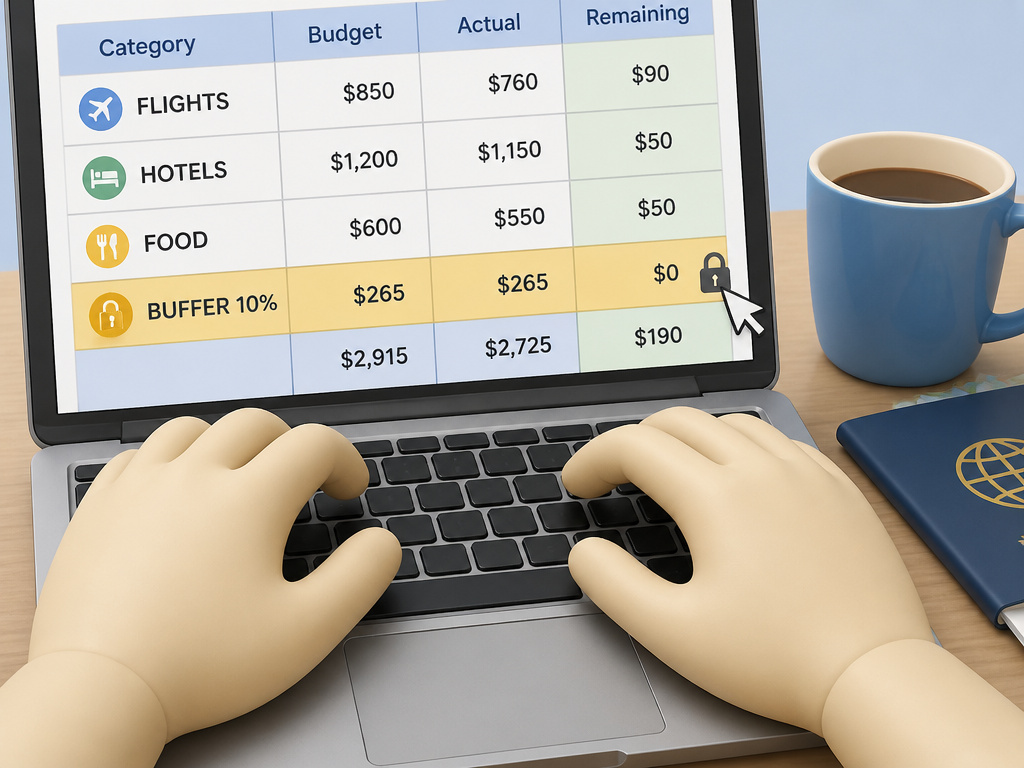
Lock the buffer cell. I build a 10% buffer into every trip budget now, and I have never once come home under it. Something always comes up: a missed train, a weather day, a restaurant that’s cash-only and has taken its card machine offline at 8pm.
In my Google Sheets template the buffer is a locked cell. I can’t delete it. That’s the whole point, because past-me would absolutely try.
TravelistCorner recommends 10% as a starting point, with more for long trips, international travel, or trips with kids. Vertex42 specifies no buffer percentage at all, only a total budget set at the top. My 15% is my own practice, not a recommendation from any of them, and I’d rather you know that than assume it came off a spec sheet.
Why a 10% Buffer Is Defensible
The buffer exists because the estimate column only holds the lines you thought of. It can’t hold the ones you didn’t. A missed connection, a weather day that kills a paid activity, a cash-only counter when you’ve budgeted on card: none of those appear in a category list, and all of them appear in the actual column.
I won’t run a trip budget without a buffer line, and I don’t much care whether you pick 10% or a little more. What matters is that the cell is locked. An editable buffer is a suggestion, and suggestions get deleted the first time the sheet looks tight.
I once sent a client to a scenic railway without checking the seasonal timetable, and she missed the only departure of the day. The rebooking was a buffer line. It was never going to be a category.
If you’re running a short trip and want the buffer to do more work, consider cutting costs on a city break before you raise the percentage. On a family vacation the advice flips: TravelistCorner recommends more buffer for trips with kids.
Easy to miss: A buffer that’s expressed as a percentage of a subtotal you haven’t finished entering. Finish the estimate column first, then apply the percentage, or you’ll lock in a buffer sized against half a trip.
Sharing the Sheet Is How the Totals Stay Honest
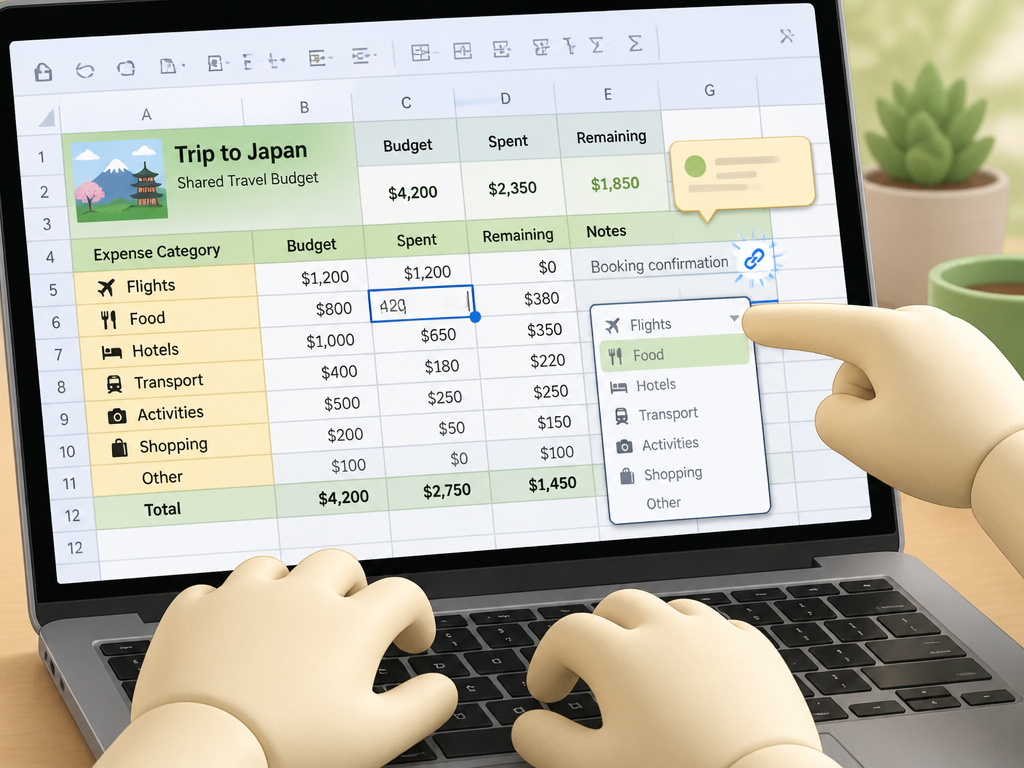
A budget spreadsheet nobody else can edit is a diary. FinancialAha makes the structural point better than anyone: a trip can be planned by one person and paid for by whoever is nearest the counter.
That’s the reason to split travel expenses inside one shared file. The person holding the card is the person who should be typing the number.
- Editor access, not Viewer. Grant travel partners Editor access so they can add flight details, suggest restaurants, or check items off the packing list.
- One card for the whole trip, to make checking your log against your statement faster.
- A card with no foreign transaction fee if you leave the US, as TravelistCorner recommends.
- Comments on the cell, not a text message. Use Insert > Comment, or right-click a cell, to leave notes and ask questions on specific items.
Bricks adds two features worth stealing. A dropdown menu for your categories stops the typos that come from re-typing category names into the same column. And the HYPERLINK function turns a booking confirmation into a clickable link inside the sheet.
The SUMIF function then totals by category, which answers “what did we actually spend on food” without scrolling.
What Breaks When Your Trip Spans Two Currencies?
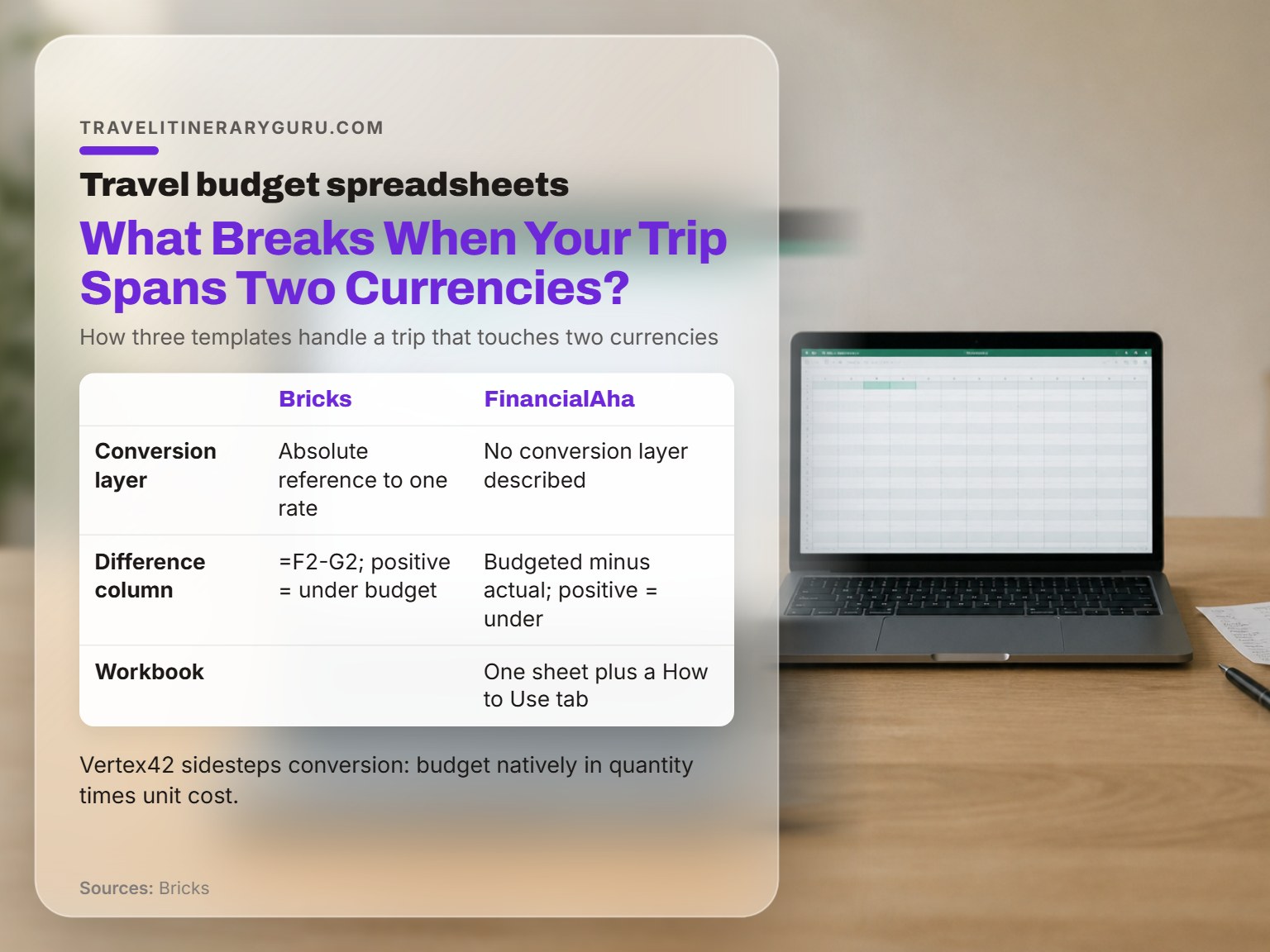
One rate cell holds one rate. That’s the whole problem, and three templates solve it three different ways.
Bricks converts both estimated and actual amounts to your home currency at a single stored rate in Reference Lists!$E$1, applied with an absolute reference. Vertex42 sidesteps conversion entirely and budgets natively in quantity times unit cost. FinancialAha uses a currency dropdown beside the title that relabels each money column, with no conversion layer described at all.
The Single-Rate Cell Problem
An absolute reference points every row at the same cell, which is elegant right up until the trip touches two foreign currencies. One cell cannot serve both a euro line and a yen line, and the sheet won’t tell you it’s wrong. The totals still add up. They’re just wrong.
If you’re planning a Japan budget alongside a European leg, or working through a round the world trip, consider a rate column rather than a rate cell. One rate per row, dated.
Which approach wins depends on one question:
- Single currency, one country: the dropdown approach avoids the rate cell.
- Two currencies, one trip: a dated rate column can help. A single cell converts both legs at the same number.
- Budgeting before you’ve booked: Vertex42’s native quantity times unit cost avoids the problem, because you’re estimating in local units rather than converting them.
Skip this if: your entire trip stays in one currency. The rate cell never enters the picture, and the dropdown is genuinely the easier build.
Reconciling After the Trip: What Millikin’s Example Gets Right
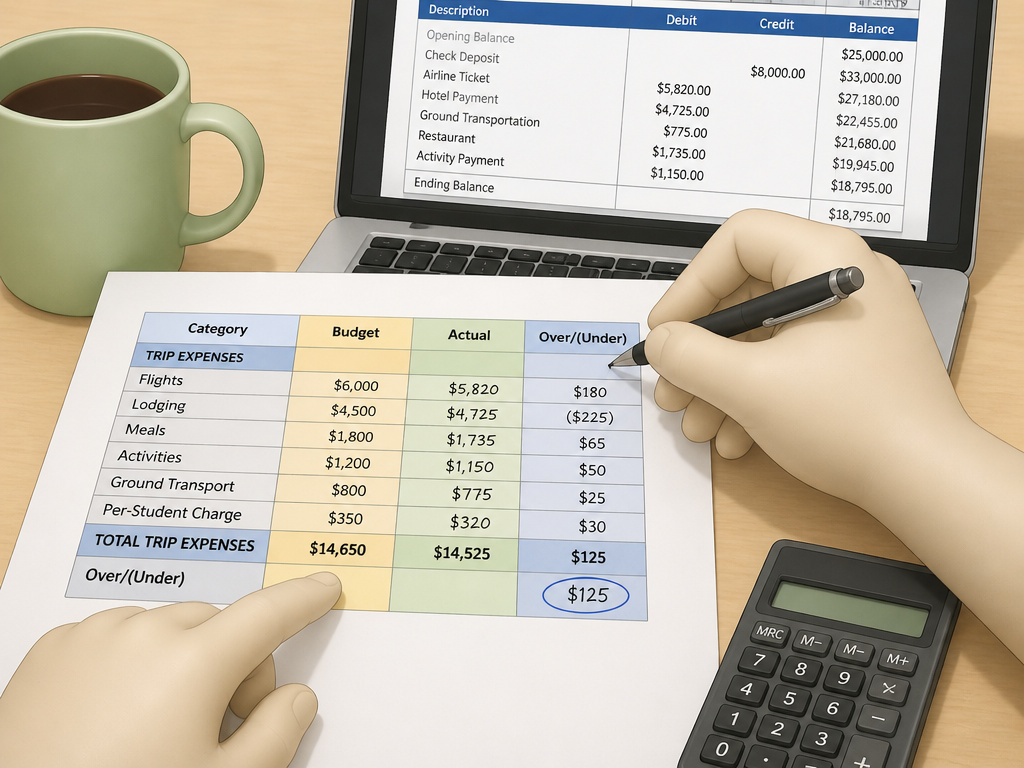
Millikin University publishes its off-campus travel budget as a worked example rather than a blank template, and the reconciliation half is where it beats every consumer sheet I’ve seen.
The example runs 5 nights with 2 faculty and 8 students enrolled. It splits the total trip cost across the enrolled students, then reconciles a per-student overage against what was charged. The line is labelled “Over/(Under)”, which is exactly the ambiguity the sign-convention table above is about.
You can read the full Millikin University budget template example as a read-only file and follow the arithmetic line by line.
When the Budget Holder Isn’t the Budget Payer
That structure exists because the person holding the budget and the person paying for the trip are different parties. No consumer template covers it, and that’s a gap rather than an oversight. A family trip has one payer. An institutional trip has a payer, an approver, and a student who gets charged.
Reconciliation is also where the surprises land. Here’s the routine I’d run:
- Fill the Actual column from one statement.
- Compare line by line, not just the total.
- Write down the two lines that surprised you.
Frequently Asked Questions
Do I need Excel, or does Google Sheets work?
Both. The FinancialAha template ships as a plain .xlsx with no macros and no VBA, so it opens in Excel on Windows, Excel on Mac, and Excel for the web, and it’s the same file you’d upload to Drive. The TravelistCorner template’s formulas and category dropdown carry over to Google Sheets without changes.
How many categories should a travel budget have?
Eight is enough for a personal trip. FinancialAha ships thirteen, which adds the insurance and miscellaneous lines a mental estimate tends to skip. If a group or an institution is paying, take the wider set. If you’re travelling solo, five or six categories with the rest left at zero keeps the sheet readable.
Should the buffer be a percentage or a flat amount?
TravelistCorner recommends 10% as a starting point, with more for long trips, international travel, or trips with kids. Vertex42 specifies no buffer percentage at all. A percentage scales with the trip, which is why it’s the more common choice, but the important part is that the cell is locked rather than editable.
What’s the difference between the estimate column and the actual column?
The estimate is what you expect a line to cost before you book. The actual is what it came to. The Difference column compares them, and the three sources disagree about which direction is positive, so write the polarity into the header rather than assuming it.
Can two people use the same travel budget spreadsheet?
Yes, and they should. FinancialAha’s argument is that a trip can be planned by one person and paid for by whoever is nearest the counter. Grant Editor access rather than Viewer access, so the person paying can log the line, and use cell comments for questions instead of text messages.
How do I handle a trip that uses two currencies?
Use a rate column rather than a single rate cell. Bricks stores one rate in Reference Lists!$E$1 and applies it with an absolute reference, which works for a single currency and fails silently for two. One dated rate per row keeps the error visible instead of buried in a total.
The Bottom Line
One threshold decides whether your sheet is doing anything. If you can’t say what the trip costs per day, the budget is still a list of guesses. FinancialAha’s Essentials dashboard reports exactly that, what’s left and what the trip is costing per day, and it’s the number I check first.
So here’s the first step this week. Open a blank sheet, put the total budget in the top cell, and enter lodging as nights times cost per night. Nothing else. If the total already looks wrong, you’ve learned something before you’ve booked anything.
And a concession. Everything above assumes you’ll actually log the actuals. If you know you won’t, don’t build the second column. A one-column estimate you keep up with beats a two-column sheet you abandon on day three.
That’s how to use a travel budget spreadsheet in one pass: total at the top, quantity times unit cost on every line, buffer locked, and the actuals logged by whoever pays.
